If you own a Samsung or an LG television made in the last eight years or so, you do not need a Firestick, an Android box or anything else to watch IPTV. The TV already has an app store, that store already has IPTV players, and the whole setup takes under ten minutes — most of which is waiting for the channel list to download.
This guide covers both platforms: Samsung Tizen and LG webOS. The menus differ slightly, the logic is identical: connect the TV, install a player, paste your line, load the channels. We will also cover the errors people hit most often, and the one honest case where a cheap streaming stick really is the better option.
Quick takeaways
- No jailbreak, no rooting, no sideloading — everything comes from the official TV store.
- Use Xtream Codes credentials rather than an M3U link when the app offers both.
- Wired Ethernet beats Wi-Fi on a TV, because TV aerials are weak and sit behind a metal panel.
- TVs older than about 2016 can no longer install new apps — use a stick instead.
- Set favourites straight away: built-in TV apps slow down badly with 70,000 channels loaded.
Before you start: three things to have ready
- Your line. Either an Xtream Codes set (server URL, username, password) or an M3U URL. If you do not have one yet, ask any provider for a free trial line first and test before you pay.
- A decent connection. 10–15 Mbps for HD, 25 Mbps and up for 4K. Stability matters far more than headline speed.
- Ten quiet minutes. Typing a long URL with a TV remote is the slowest part of the whole job — which is why we suggest a shortcut for it below.
Step 1 — Get the TV properly online
Open Settings → Network and connect. Two rules that save a lot of grief later: pick the network name ending in 5G or 5GHz rather than the 2.4GHz one, and if the router is anywhere near the TV, use an Ethernet cable instead. A television’s Wi-Fi aerial is small and sits behind a large metal panel, which is exactly why so many people find their TV buffers where their phone does not.
Run the built-in connection test before moving on. If the TV itself reports a weak or unstable link, no player app will fix that.
Illustration
Step 2 — Install a player app
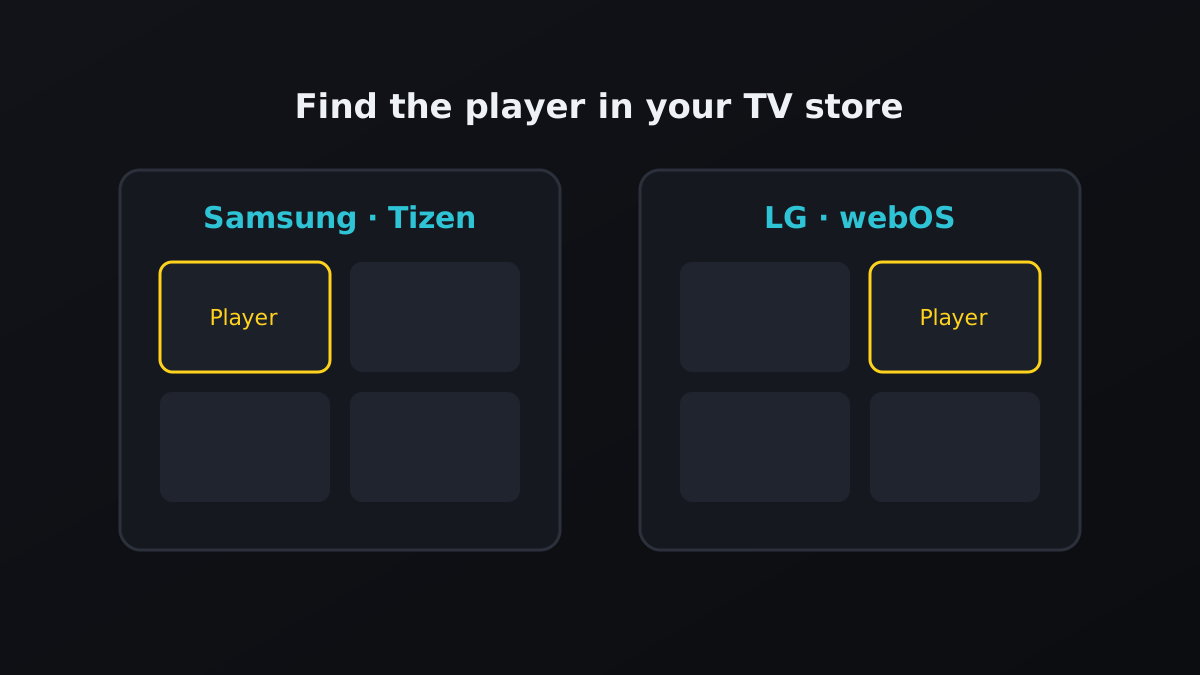
On a Samsung (Tizen)
- Press Home on the remote.
- Scroll left to Apps and open it.
- Select the search icon at the top right and type IPTV.
- Pick a player from the results and choose Install.
- Open it once — the app will show a device ID or MAC address. Note it down; some players need it.
On an LG (webOS)
- Press Home on the remote.
- Open the LG Content Store.
- Go to Apps and search for IPTV.
- Select a player and choose Install.
- Launch it and note the device key or MAC it displays.
Some players are free, some ask for a small one-off activation fee per device. That fee goes to the app developer, not to your IPTV provider — it is normal, and it is per TV, once. If you are not sure which player we recommend for your exact model, our setup page lists the ones we support, and our team will confirm over WhatsApp in a minute.
Step 3 — Add your line
Illustration
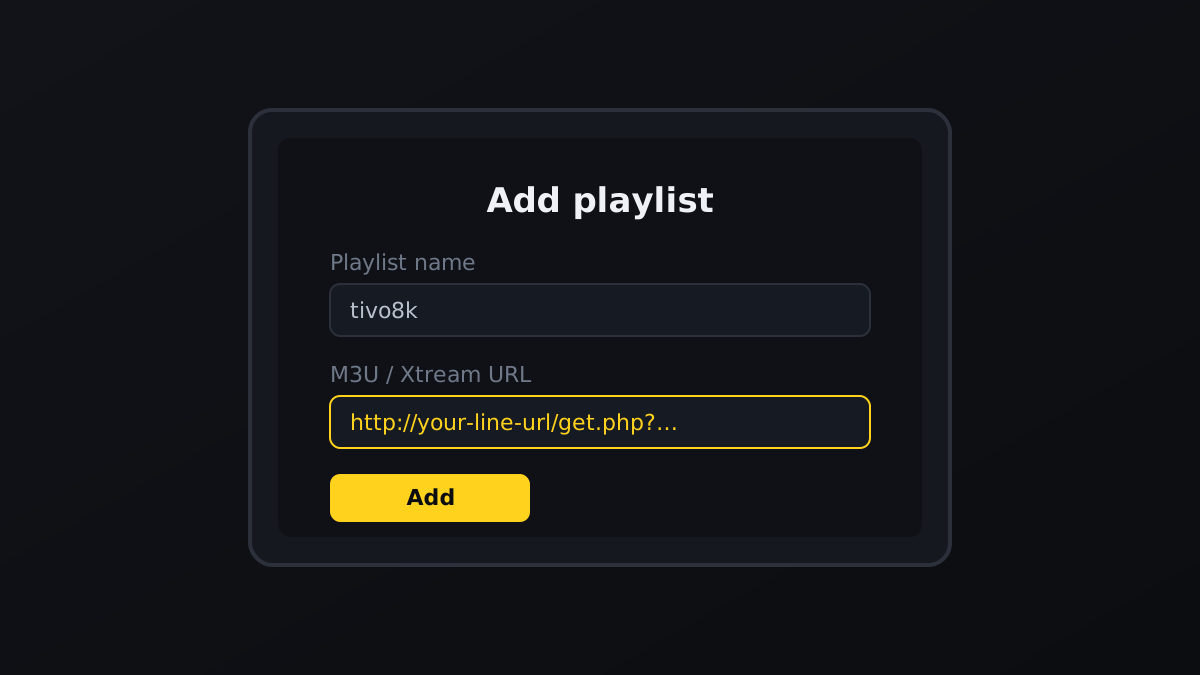
Inside the player, choose Add playlist (or Add user / Login, depending on the app). You will be offered two methods:
- Xtream Codes API — enter the server URL, your username and your password in three separate fields. Prefer this one. It loads the TV guide, the movie library and the series section properly, and there is far less to mistype.
- M3U URL — one long link containing everything. Works fine, but usually gives you a flatter channel list and a patchier EPG.
Give the playlist a name you will recognise, then save. The shortcut worth knowing: many players offer a web portal where you paste the URL from your phone or laptop and it appears on the TV using the device ID from step 2. Thirty seconds instead of five minutes of remote-control typing.
Step 4 — Let everything load, then start watching
The first load is the slow one — the app is downloading tens of thousands of channel entries plus several days of EPG data. Give it a minute or two and do not force-close it. When the list appears, open any channel; playback should start within a couple of seconds.
Now do the single most useful thing on a smart TV: build a favourites list. Mark the twenty or thirty channels you actually watch and set the app to open on Favourites. Built-in TV apps have a fraction of the memory of a phone or a stick, and scrolling a 70,000-line list is what makes them feel sluggish. Trim it and the same app feels like a different product.
Step 5 — Five minutes of tuning that people skip
- Set the buffer slightly higher in the player settings. Channel switching gets a touch slower, tolerance for a wobbly connection gets much better.
- Switch the decoder if a channel stutters while others are fine. Hardware and software decoding both exist for a reason; TVs sometimes prefer the other one.
- Turn off the TV’s motion smoothing (“Auto Motion Plus” on Samsung, “TruMotion” on LG) for live sport. It adds lag and artefacts to fast-moving streams.
- Disable energy-saving picture modes, which dim the panel and make 4K feeds look worse than they are.
- Restart the TV weekly. A full power cycle — plug out, thirty seconds, plug back in — clears memory that these apps never release on their own.
Common problems and the actual fix
| What you see | Most likely cause | Fix |
|---|---|---|
| App not in the store | TV older than ~2016 | Use a streaming stick on HDMI |
| “Invalid credentials” | Typo, or http/https mix-up | Re-enter via the web portal, check the port number |
| Channels load, none play | Line not active yet, or device limit reached | Close the app on other devices, ask support to reset |
| Empty TV guide | M3U without EPG | Switch to Xtream Codes login |
| Everything buffers at 9pm | Congestion or server load | Wire the TV, then read the buffering guide |
| List scrolls slowly | TV app memory | Use favourites, hide unused categories |
One more worth stating plainly: if a single channel stutters while everything else is perfect, nothing on your TV is broken. That feed is overloaded at the source, and a decent provider will move you to a backup within minutes of you asking.
Smart TV app or streaming stick — the honest answer
Illustration
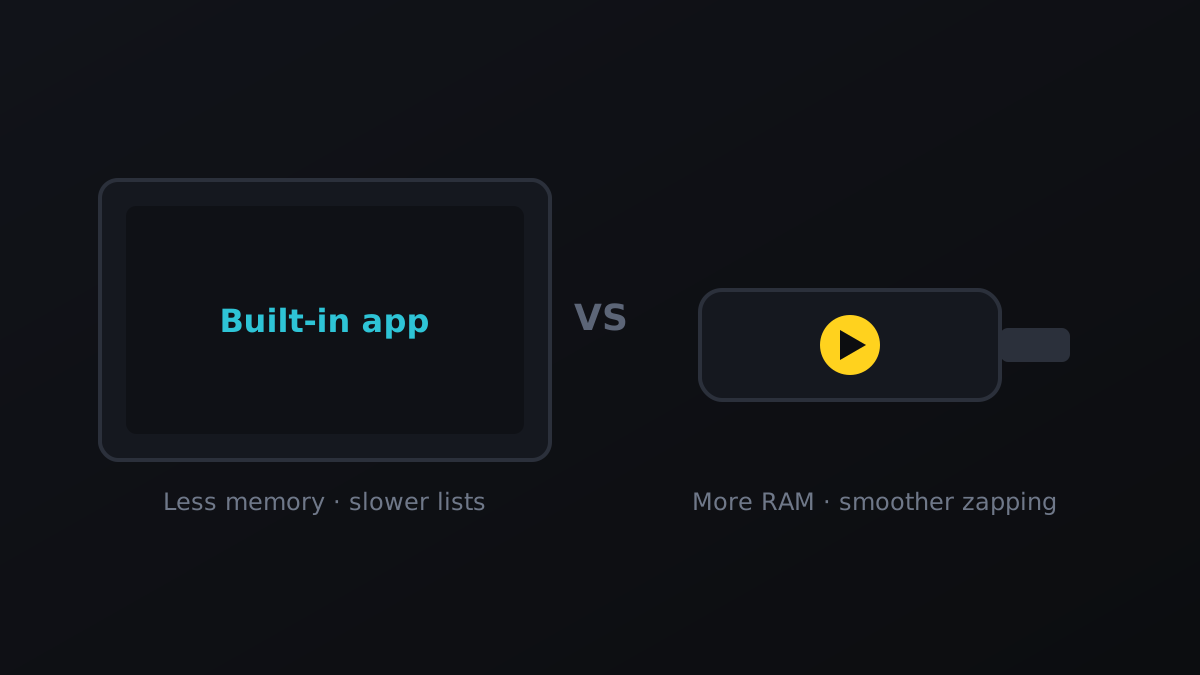
Built-in apps win on tidiness: one remote, no extra box, nothing to plug in. They lose on power. A Firestick 4K Max or a mid-range Android box has several times the usable memory, better player apps, and noticeably faster zapping through a huge list.
Our rule of thumb: if you watch thirty channels and set favourites, the built-in app is genuinely fine and the neater choice. If you browse large lists, use a lot of VOD, or your TV is from before 2018, spend the price of two months’ subscription on a stick and you will feel the difference every single evening. Our Firestick guide covers that route step by step.
A word on legality and safety
Stick to your TV’s official app store. Anything that asks you to unlock, root or sideload firmware onto a Samsung or LG television is risky, usually breaks with the next TV update, and can brick an expensive panel. Everything in this guide uses supported, official routes — and a provider who tells you otherwise is telling you something about themselves.
The bottom line
Installing IPTV on a Samsung or LG smart TV is a five-step job: get the TV online (wired if you can), install a player from the official store, add your line with Xtream Codes rather than M3U, let the channels and EPG load fully, then build a favourites list so the app stays quick. Ten minutes, no extra hardware, no risk to the TV.
If you still need a line, start with a trial and put it through the seven-point test before you pay anyone. You can check your channels are in our channel list first, then pick a plan and be watching on the TV itself tonight.
Frequently asked questions
Yes. Samsung Tizen and LG webOS TVs from roughly 2017 onwards both carry IPTV players in their own app stores. Install one, enter your line, and the TV plays the streams directly — no stick, no box, no cables.
No, and you should not. Every step here uses the official store. Anything asking you to unlock or sideload firmware onto a Samsung or LG panel risks breaking the TV and stops working at the next update anyway.
Sets older than about 2016 run store versions that no longer receive new apps, and no setting changes that. The cheapest fix is a streaming stick in a spare HDMI port — which will also outperform the built-in app.
Xtream Codes when the app offers it. It is three short fields instead of one very long URL, and it pulls the EPG, movies and series across properly. M3U works, but usually gives a flatter list and a patchier guide.
Two reasons: the TV’s Wi-Fi aerial is weaker and sits behind a metal panel, and built-in apps have far less memory than a phone. Move to 5GHz or plug in Ethernet, and trim the channel list with favourites.
Some players are free; others charge a small one-off activation per device. That fee goes to the app developer, not your IPTV provider, and it is charged once per TV. Ask support which player they recommend before paying anything.
You can install it on as many devices as you like, but most plans allow one or two streams at the same time. If a second device says the line is in use, that is the connection limit — check what your plan includes on our pricing page.
If you are setting this up before choosing a provider, get a 24-hour trial line first and run through these steps with it. Smart TVs are the fussiest devices in IPTV — better to find that out on a free line than on a year you have already paid for.